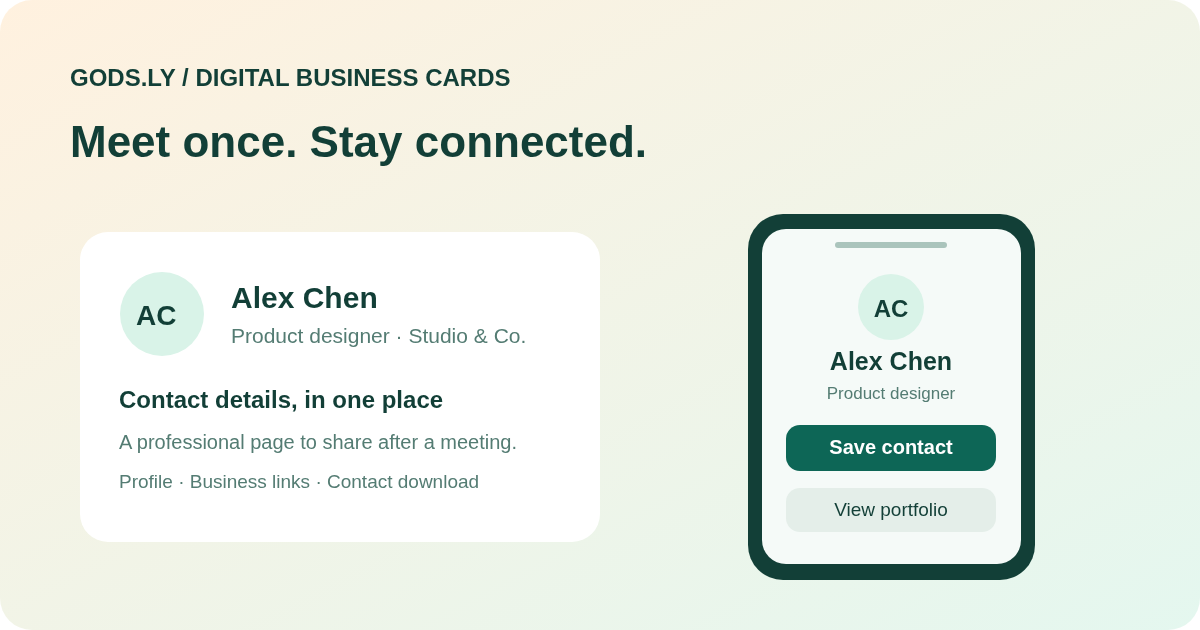
What a digital business card does
A digital business card is a public profile that presents professional contact details and useful links in one place. You can share its web address in a message, email signature, meeting follow-up, or QR code. The recipient opens a page instead of reading all the information from a printed card.
The page and the contact download serve different purposes. The page can stay current after publication. A downloaded contact is a snapshot that the recipient saves on their device; it does not automatically synchronize with future edits to your profile.
Start with the information a customer needs
Choose a clear display name, role, company, and a short description. Add a recognizable profile image and only the contact channels that you want to make public. A customer should be able to understand who you are and choose the next action without reading a long biography.
Prioritize a business email, appropriate phone number, website, portfolio, or appointment page. Avoid publishing a private home address or a personal number just because the editor has a field for it. A public card is accessible to people beyond the first recipient.
Create and publish in Gods.ly
Open Business Cards in the workspace, create a card, choose a template, and enter the contact information. Review the mobile, tablet, and desktop previews available in the editor. Check the public alias and any visible links before saving and publishing.
Use the current package and configuration as the source of truth for available templates, custom domains, and limits. A preview is useful for design, but it is not a substitute for opening the published address as a visitor.
Test contact saving as well as page viewing
Open the public card in a clean browser on a phone and a computer. Check the main contact actions and download the contact file. Confirm that the name, company, email, phone, and website appear in the fields you expect before sharing the card widely.
Contact applications may handle vCard fields differently. Some recipients will see an import screen before they save the record. Explain that action clearly, and do not promise that opening the page automatically adds a contact to every device.
Use QR codes where they improve the meeting
A QR code can help someone open your card from a badge, presentation, counter display, or printed handout. Keep the code visible, use sufficient contrast, and provide the short address as an alternative. Test the exported file at its real display or print size.
The QR code normally opens the card page. The visitor then decides whether to save the contact or use a link. An NFC accessory is not required to share a web address or QR code; hardware compatibility and third-party accessories are a separate decision.
Keep team cards consistent without losing ownership
For a team, agree on the company name, brand assets, contact fields, and permitted links. Use consistent templates while keeping each person’s professional details accurate. Review the available Team Cards and Brand Kit controls before deciding how editors and owners should collaborate.
When a person changes role or leaves the organization, update or unpublish their card deliberately. Do not replace a departing employee’s card with an unrelated person without considering the expectations of earlier recipients. Keep the organization’s account access and domain ownership current.
Measure interest without overstating the result
Card visits show activity around the public profile. They do not prove that a recipient saved the contact, qualified as a lead, or became a paying customer. Treat recorded activity as a starting point and review actual replies, appointments, or submitted forms separately.
Do not collect more personal information than your follow-up requires. If you add a lead form or appointment link, make its purpose clear and use the appropriate privacy information. A contact-sharing page should help people connect, not conceal an unrelated data collection flow.
A practical publishing checklist
Before publishing, review public contact details, the main action, profile image, link destinations, exported QR code, and downloaded contact. After publishing, test the real page and keep the details accurate. If you unpublish a card, the public route should no longer display that profile.
Compare the current packages against the number of cards, collaborators, and branding controls you actually need. Start with a small set of active profiles and expand after the contact-sharing workflow works reliably for your audience.